
Objective
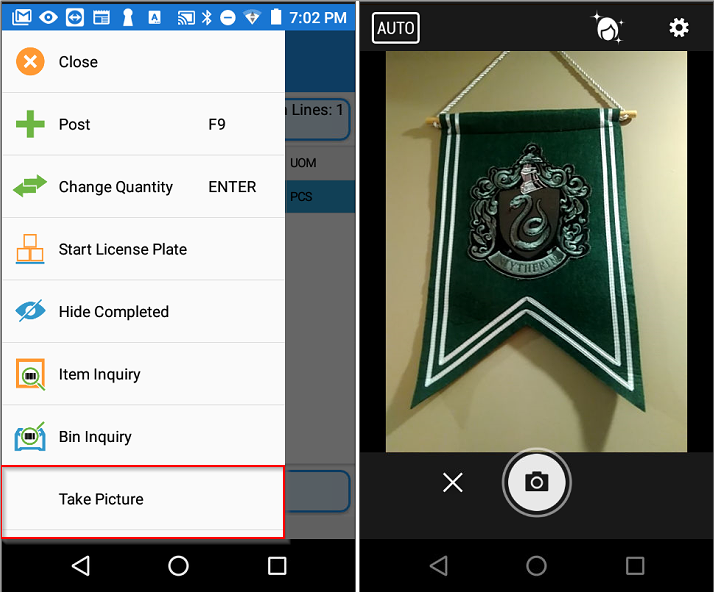
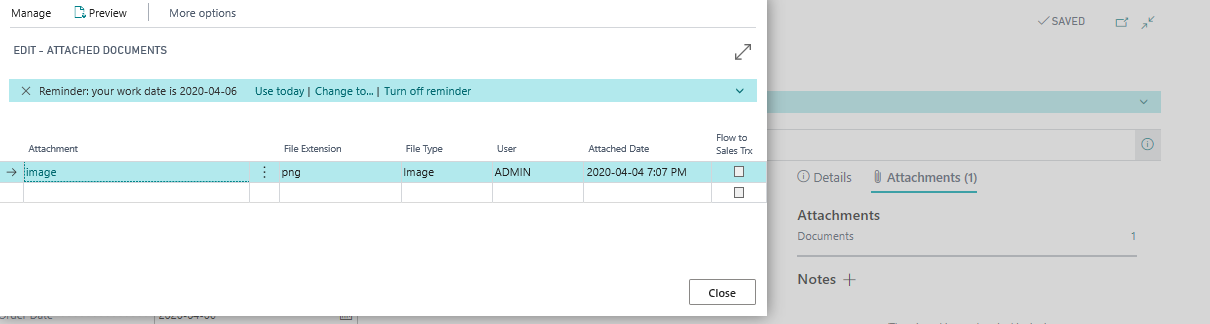
In some cases, users of Warehouse Insight will want to be able to take pictures and add that picture to the document from their mobile devices. This article will walk through the steps and code required to add capture a picture on a Sales Order from the device and add it as an attachment to the document.
Requirements
This article requires the following:
- Business Central version 15 or higher
- Warehouse Insight Advanced WMS version 2.0 to version 2.6 (this does not apply to any version newer than 2.6)
Steps
The following steps/code can be modified or extended as required and assume a base level familiarity with Business Central and Warehouse Insight.
Add a Menu
- Navigate to the Warehouse Insight Device Menus page in Business Central.
- Select Application from the Form dropdown.
- Select WHSE_RECEIPT_DOC from the Application dropdown.
- Create a new menu at the end with the following properties:
- Caption: Take Picture
- Event ID: 976
- Require Line : YES
- Standard Action: Take Picture
Create the Extension
You must handle custom events before the base product execution occurs. We will be subscribing to the “OnBeforeProcessEvent” and listening for the event defined on the Menu (ID 2000000).
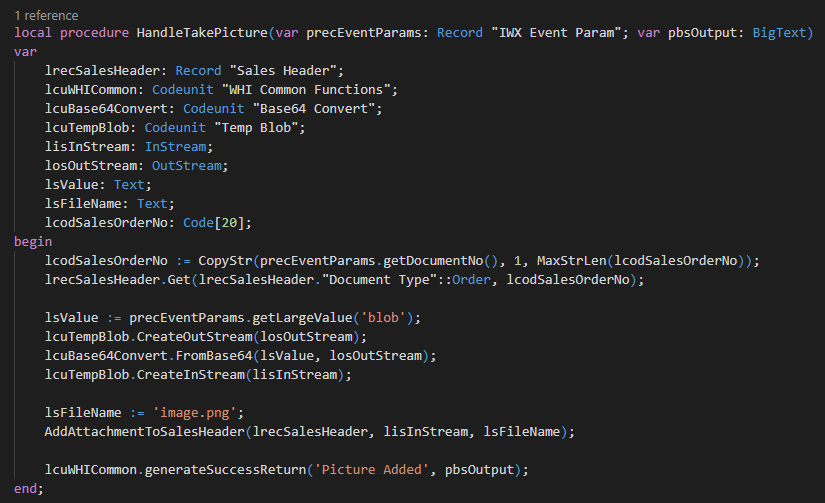
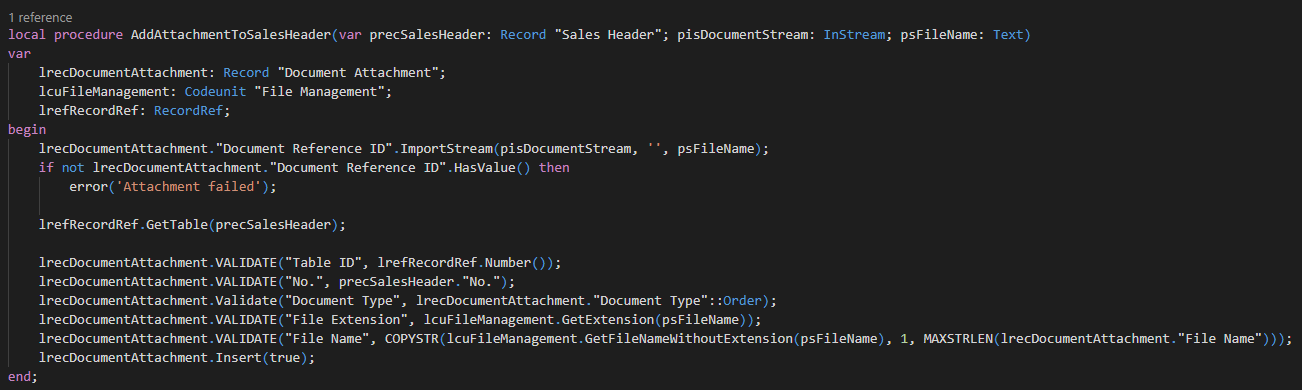
- Create an extension codeunit to process the request and save the picture as an attachment.

The code for saving the attachment is given below. When done, the custom event must indicate the event was handled to avoid errors being generated by base Warehouse Insight.
Result
Once the extension codeunit has been published comments can now be added via the “Add Comment” menu option on the document.
Still need help?
Ask other Business Central users in the Insight Works community, or send the details to the support team. Include the steps you took and any error message you saw.