
The Basic Count application is used to perform inventory counts if you have not purchased the Advanced Inventory Count application. The Basic Count acts as an interface around the Physical Inventory Journal. If you have purchased the Advanced Inventory Count application, please see the Advanced Inventory Count page.
Core features of this application include:
- Manual Counting
- Cycle Counting
You can access the Basic Count application from the Home screen by clicking Basic Count. When launched, the Basic Count Lookup List page opens.
Basic Count Lookup List
The Lookup List page allows you to select the Physical Inventory Batch you need to view. Only Physical Inventory journal batches are displayed. Use the filter bar to filter the lookup list to specific Batches if required.
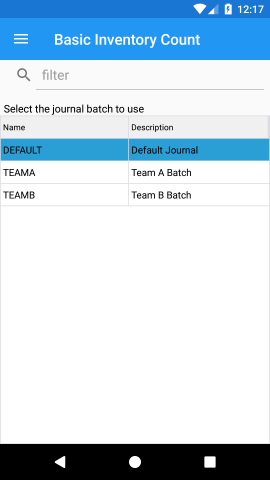
Basic Count Batch
When you select a Basic Count Batch to open a screen like this is shown:
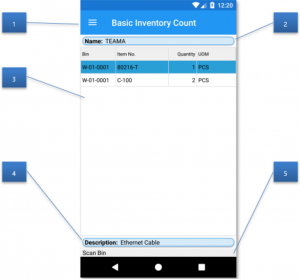
| Callout ID | Description |
|---|---|
| 1 |
The available menu options:
|
| 2 | The batch name. |
| 3 | The journal lines on the current batch. |
| 4 | The selected line’s item description. |
| 5 | Status bar indicating status messages or instructions. |
Counting Items
The standard process flow should be used when counting items:
- Scan the bin to count in.
- Scan the item to count.
- Enter the quantity counted.
See the General Document Handling section on the Overview page for more information.
If the batch already contains the counted item, the line is updated. If the entry does not already exist, a new line is added to the batch.
The Scan Behaviors page can be configured to control aspects of this process. For example, you can configure the quantity dialog to not appear but increment the count by one, or change the default quantity or unit of measure to count in.
Menus
The following menus are available by default for Basic Count. Menus may be added or removed as required from the Device Menus page under the Application Form with a selection of BASICCOUNT_DOC for the application.
Close (Menu)
Closes the Count Batch and redirects to the Lookup List page.
Delete Line (Menu)
Deletes the selected Journal line.
Change Quantity (Menu)
Launches the Quantity dialog for the selected line.
Enter Bin (Menu)
This option is hidden by default but is made visible via the Device Menus page. Users are prompted to type in the bin that they need to simulate scanning. This option is useful if bin labels have become damaged or are inaccessible.
Enter Item (Menu)
This option is hidden by default but is made visible via the Device Menus page. Users are prompted to type in the item that they need to simulate scanning. This option is useful if item labels have become damaged or are no longer readable.
Item Inquiry (Menu)
Launches the Item Inquiry management screen pre-filtered to the selected line.
Bin Inquiry (Menu)
Launches the Bin Inquiry management screen pre-filtered to the active bin.
Still need help?
Ask other Business Central users in the Insight Works community, or send the details to the support team. Include the steps you took and any error message you saw.