
Step 3 of 3. Follow these articles in order.
Configurator BOM Designer
Once the item categories, options, and option choices are set up, you can create or find items based on the configuration using the Configurator BOM Designer worksheet:
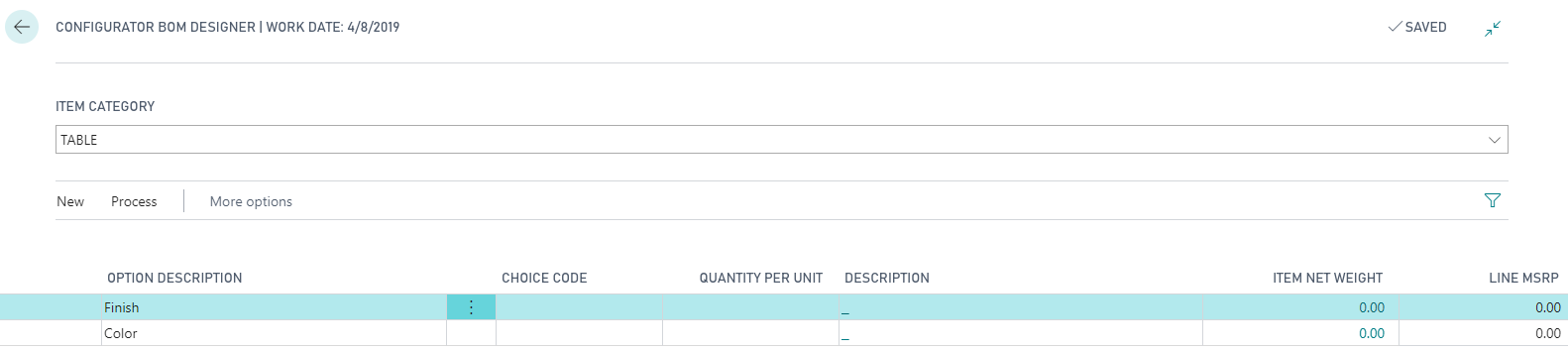
The user can either select an item category to load the available options in the page or click the Load Existing Item action to load the options and previously selected choices for an existing item. Once the options are loaded the user can choose or change the option choices as required. Clicking the Create Configuration action will create the item along with its BOM and, if applicable, its routing.
Sales Quote and Sales Order
The Configurator can also be launched from a sales quote or order. When run from a quote or order, the configurator item is directly associated with the sales line.
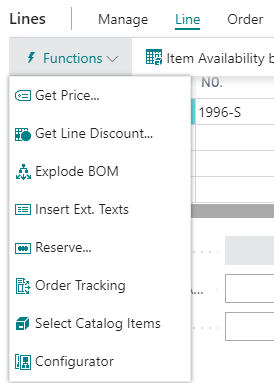
Once the user is finished in the Configurator BOM Designer, the user only needs to press the OK button to create or find the item and add it to the sales line.
Still need help?
Ask other Business Central users in the Insight Works community, or send the details to the support team. Include the steps you took and any error message you saw.